 BookingOSBooking operating systemGetYourGuide guide
How to map GetYourGuide products in BookingOS
This guide explains where to enter the BookingOS Product Code, where to paste the GetYourGuide Option ID, and how to link a GetYourGuide product to the correct internal BookingOS service.
Where to enter the BookingOS Product Code in GetYourGuide
After creating the mapping in BookingOS, the supplier connects the product option inside the GetYourGuide Supplier Portal. The value entered in GetYourGuide as the External Product ID must be the same value shown in BookingOS as the BookingOS Product Code.
Field match
BookingOS
BookingOS Product Code
GetYourGuide
External Product ID
Important
For the first connection, the product code may need to be entered manually in GetYourGuide. Make sure there are no extra spaces before or after the code.
Open the product option in GetYourGuide
In the GetYourGuide Supplier Portal, go to Manage → Products, open the product details, and edit the option you want to connect.
Open Connectivity Settings
Inside the option, go to Connectivity Settings and choose that you use an online reservation system.
Select BookingOS as the reservation system
Select BookingOS from the reservation system dropdown. If it is not visible yet, the supplier may need to wait until the integration is enabled by GetYourGuide.
Enter the External Product ID
In GetYourGuide, the External Product ID must match the BookingOS Product Code configured in BookingOS Channel Manager.
Complete product configuration
After connectivity is configured, GetYourGuide may ask the supplier to review pricing categories, capacity information and prices before validation.
Wait for validation
GetYourGuide validates the connected product automatically. If validation fails, check the BookingOS mapping, product code, option ID, availability and ticket rules.
Field match
BookingOS
BookingOS Product Code
GetYourGuide
External Product ID
Configure the mapping in BookingOS
Follow these steps to connect a GetYourGuide product option to an internal BookingOS service. Click any screenshot to open it in full size.
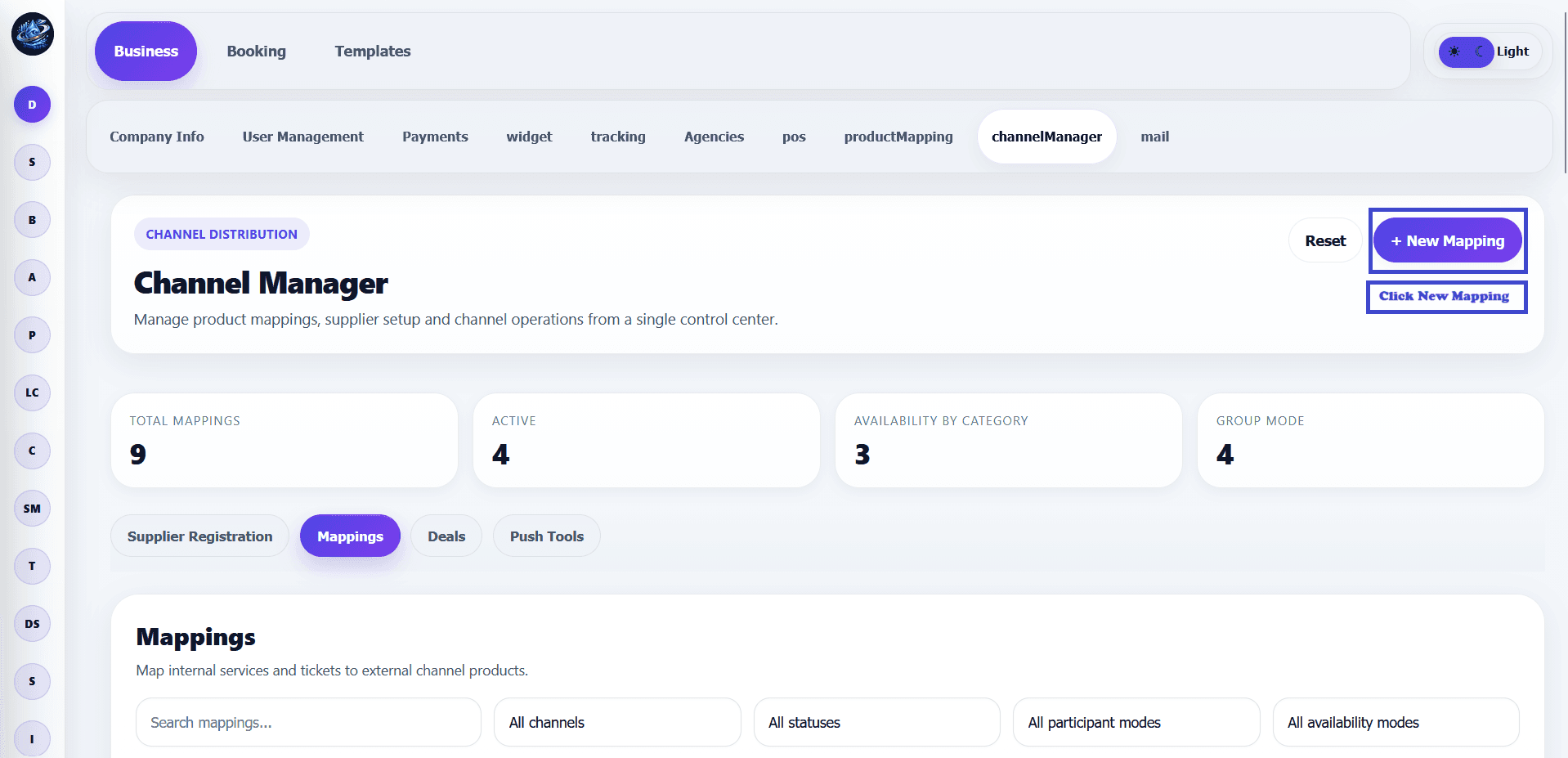
Open Channel Manager and click New Mapping
Open the Channel Manager tab in BookingOS, then click New Mapping to start creating a new GetYourGuide product mapping.
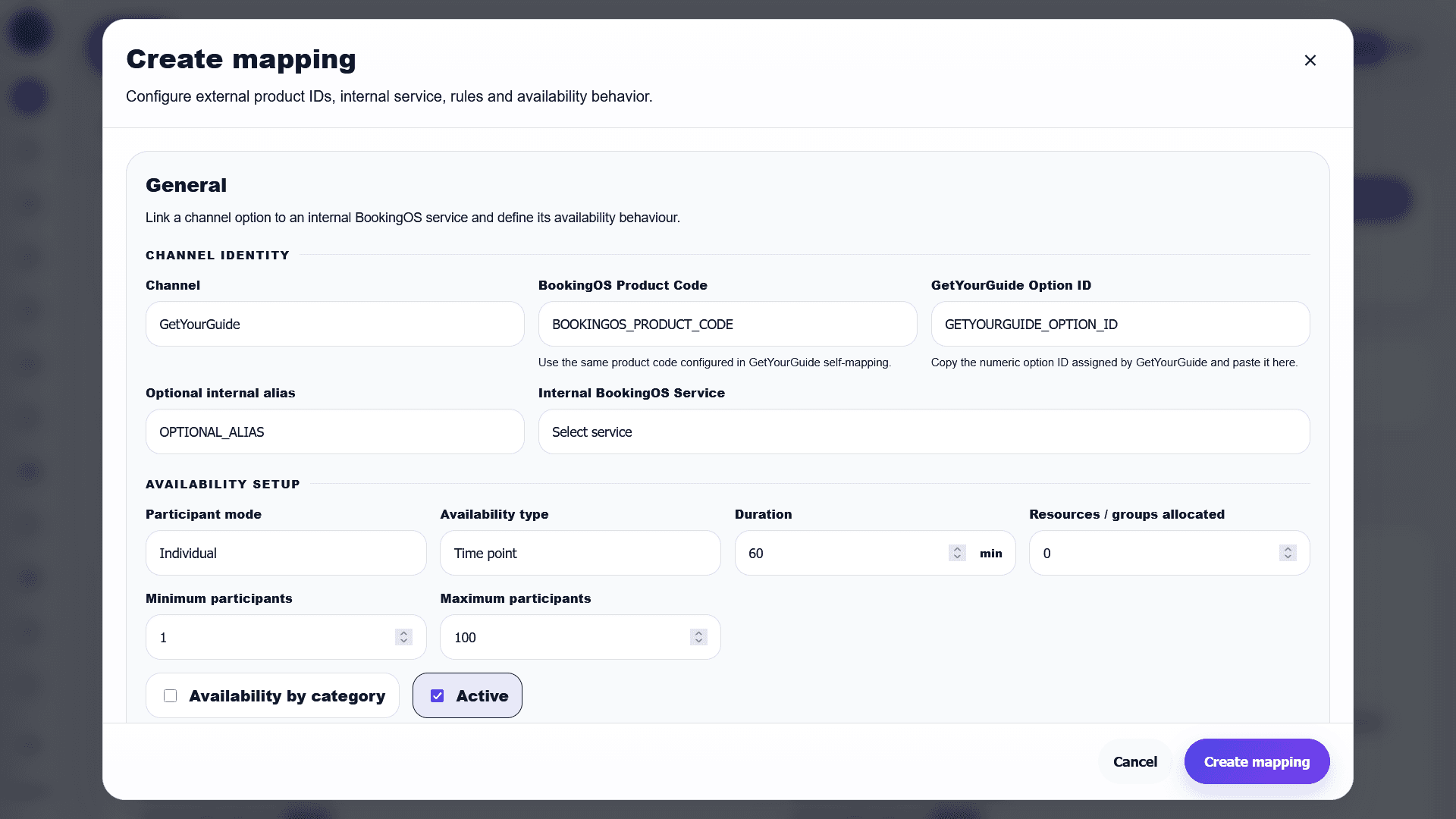
Enter the channel identity
Choose GetYourGuide as the channel, enter the BookingOS Product Code, paste the GetYourGuide Option ID, and select the internal BookingOS service.
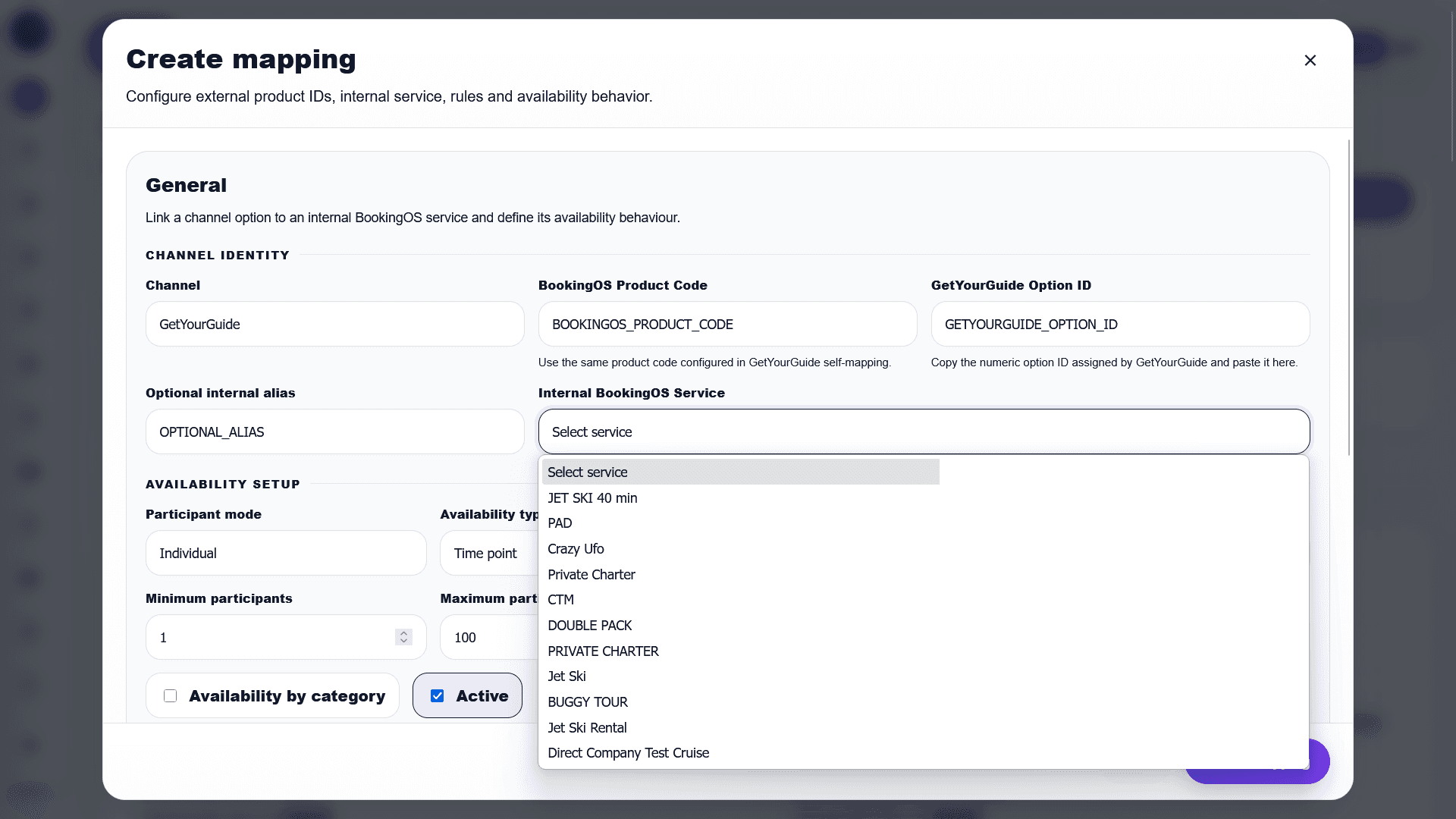
Select the internal BookingOS service
Select the internal BookingOS service that should receive bookings from this GetYourGuide product.
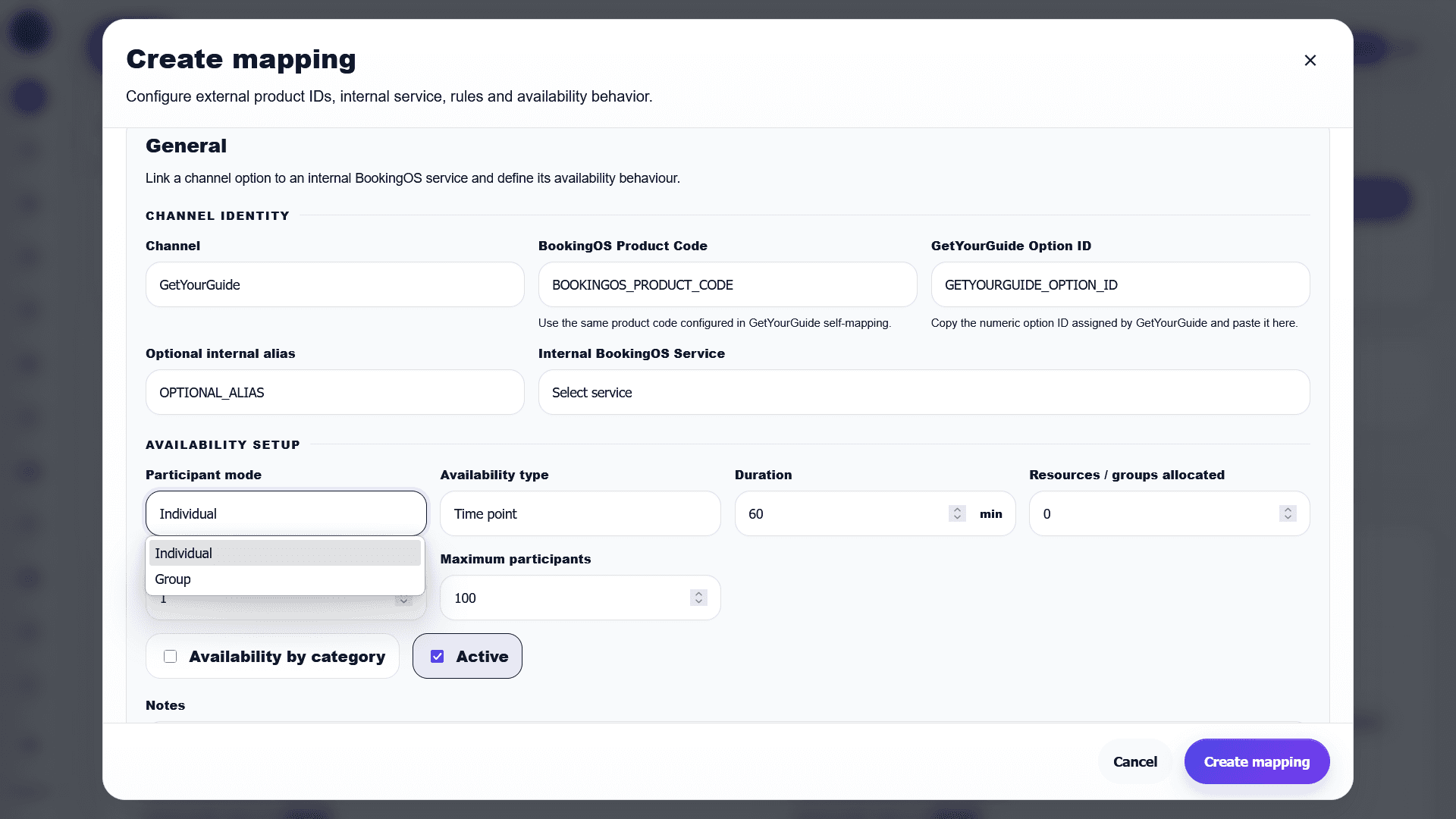
Choose participant mode
Use Individual when customers book tickets or participants. Use Group when the whole slot, vehicle, boat, or private experience is booked as one group.
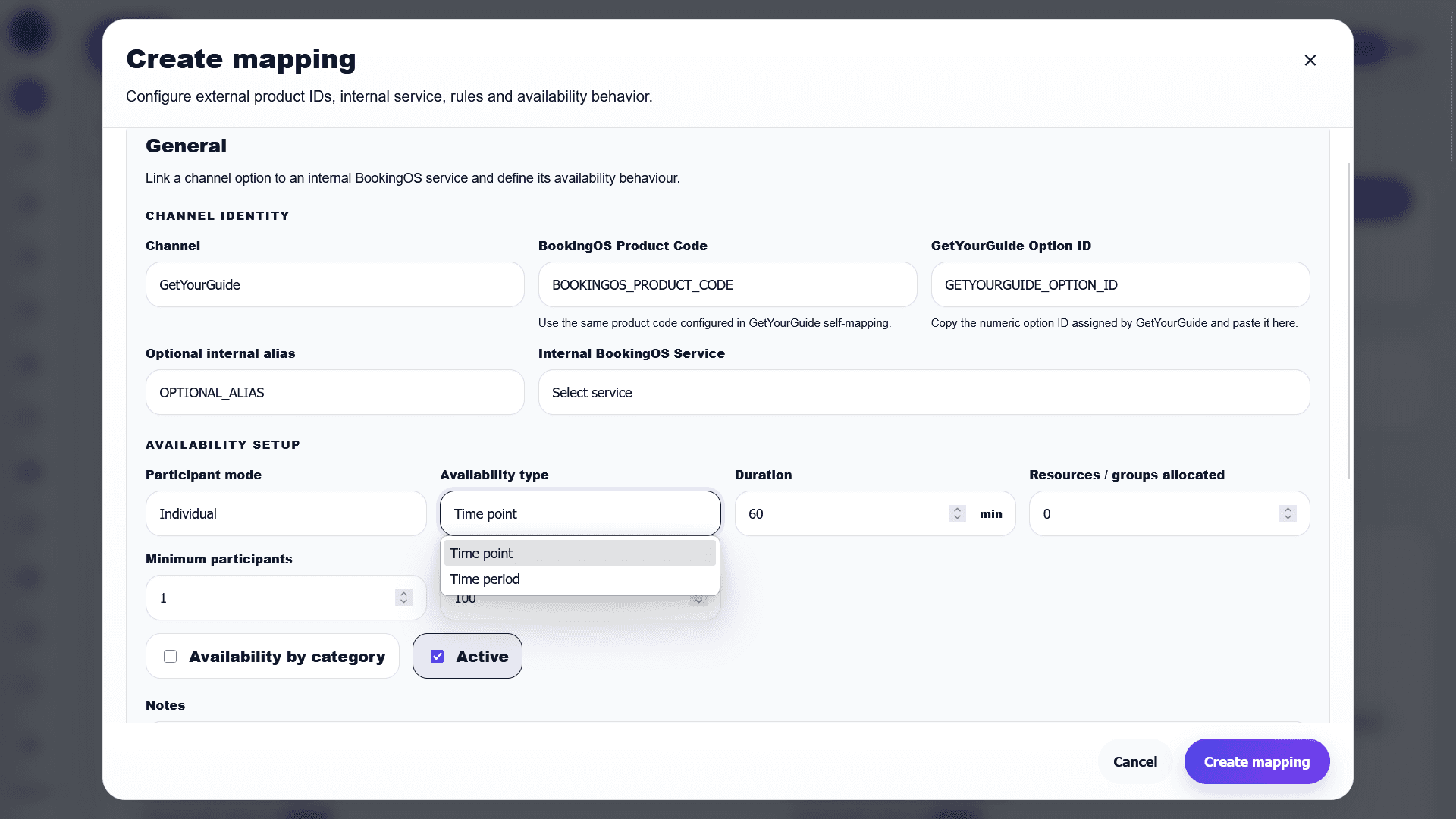
Choose availability type
Use Time point for fixed departure times. Use Time period for flexible or opening-hours style availability.
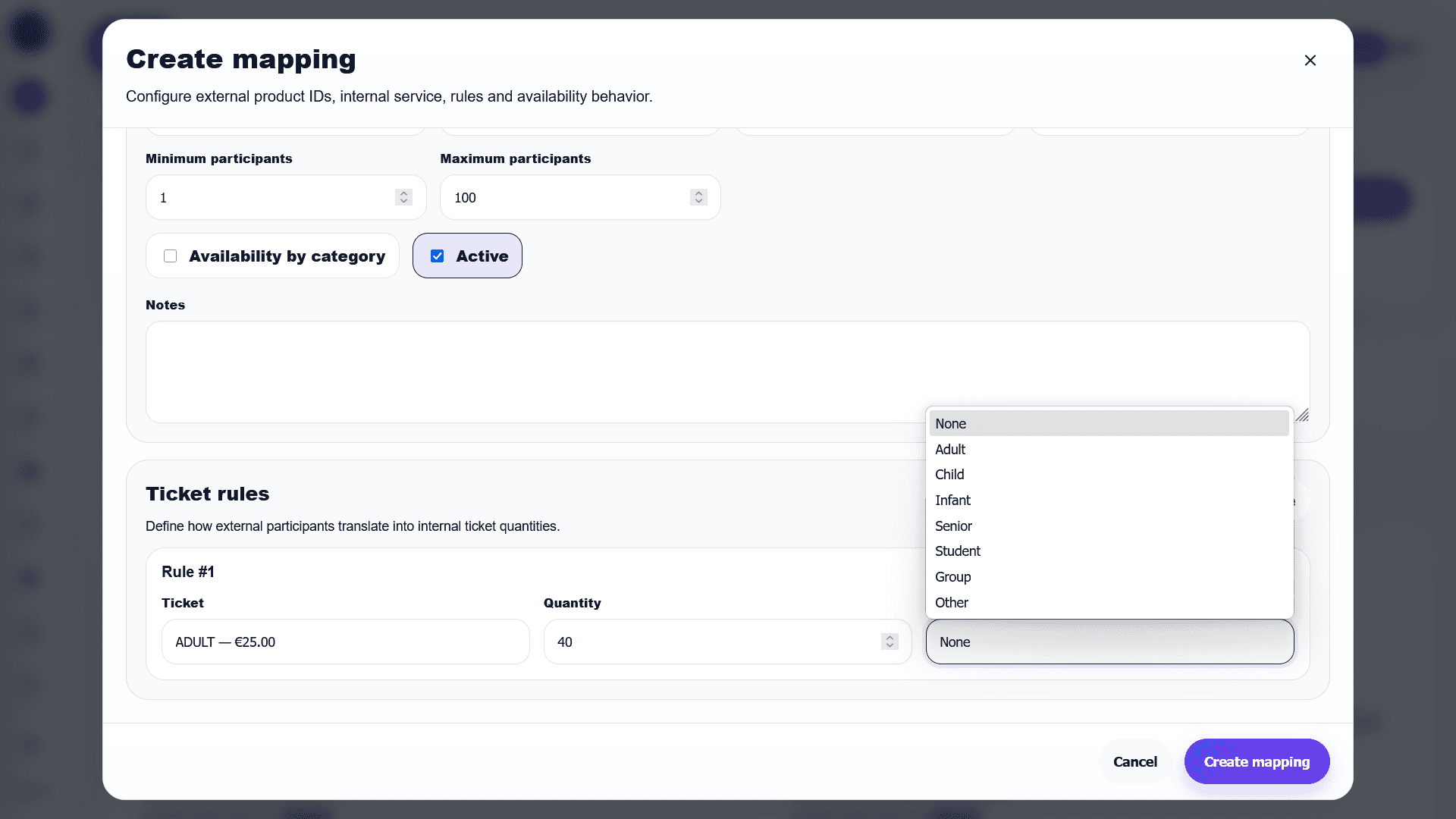
Configure ticket rules
Ticket rules define how external GetYourGuide participants are converted into internal BookingOS tickets.
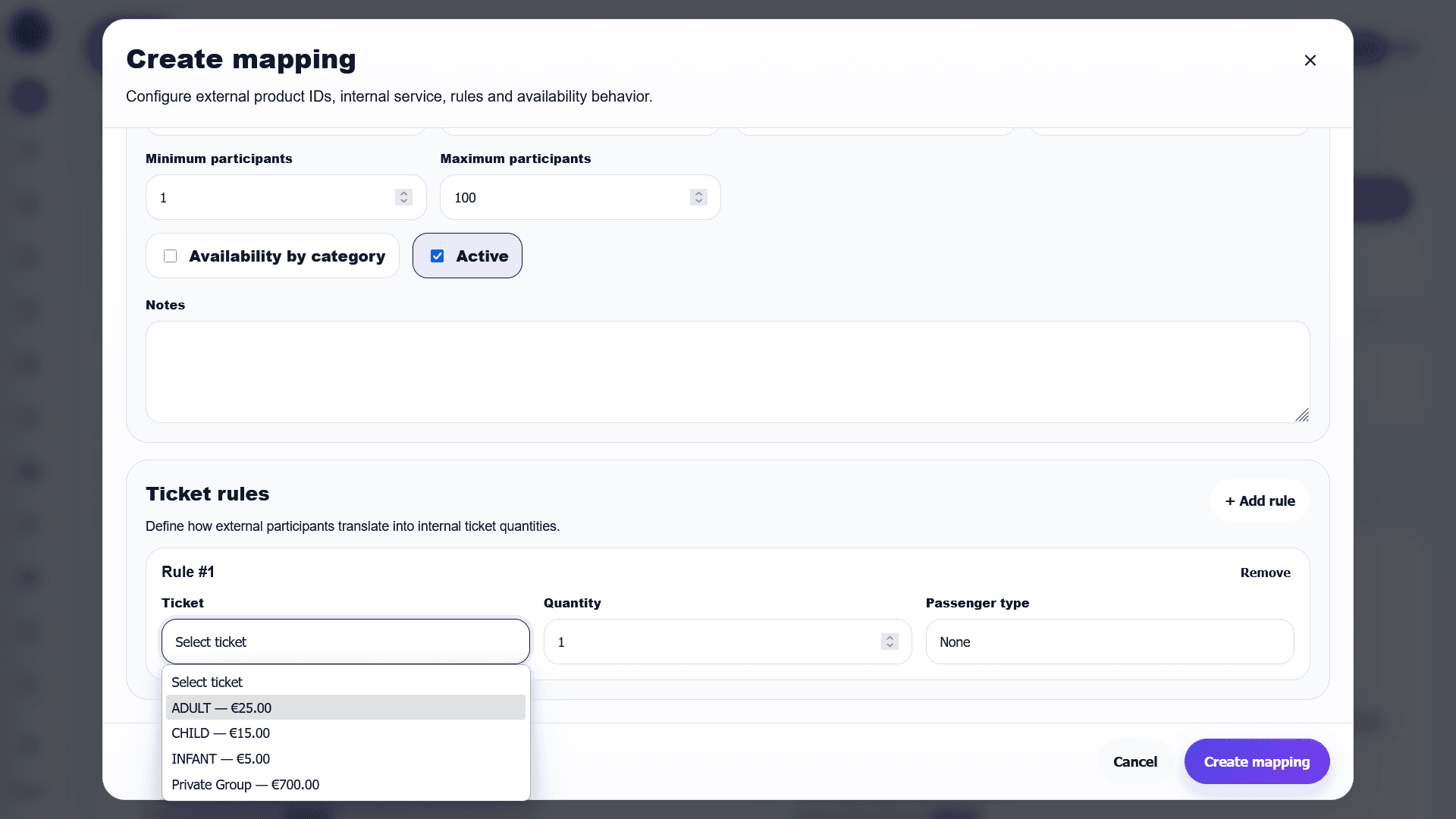
Select the passenger type
Passenger type tells BookingOS how the external participant should be treated: adult, child, infant, group, or other.